My Workgroups
A workgroup lets several people work on the same projects. You decide who is in it and what each member may do — view, run analyses, edit the documentation, download it, and more. Anyone signed in can create a workgroup, and you can belong to as many as you like.
Your workgroups
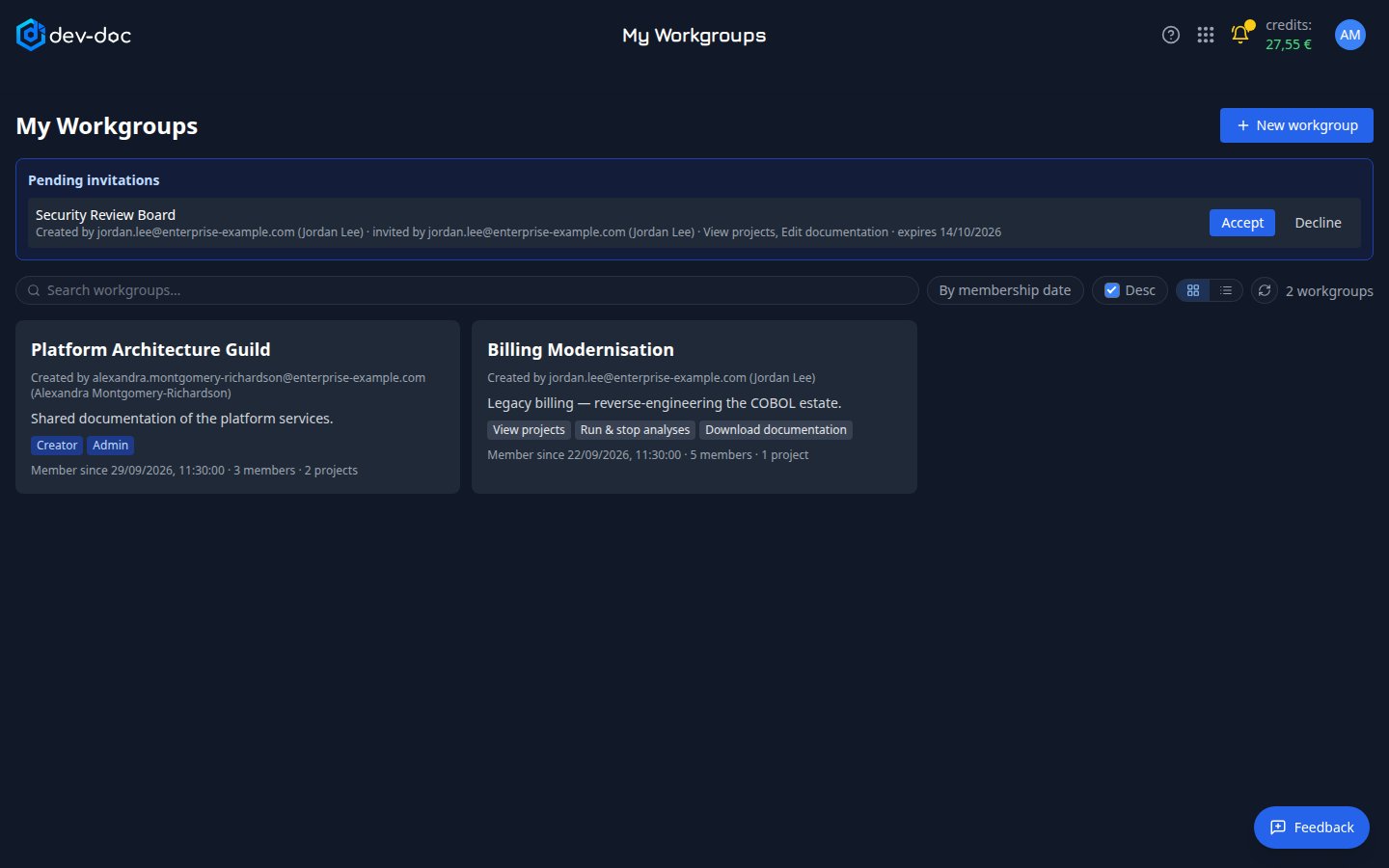
- New workgroup — give it a name (required) and a description (optional). You become its creator: an admin who can never be removed. Your own workgroup names must be unique; other people may use the same name, which is why a workgroup is always shown with the email of the person who created it.
- Pending invitations — invitations sent to your email address. Accept to join, Decline to refuse. An invitation expires after 14 days.
- Search — finds workgroups by name, description or creator.
- Sort and view — sort by membership date (newest first by default) or by name; tick Desc to reverse the order. The two buttons next to it switch between cards (the default) and a table; your choice is remembered.
- Refresh — reloads the list.
- Workgroups — name, creator, description, when you joined and your role. Click a card (or a row in the table view) to open the workgroup.
Inside a workgroup
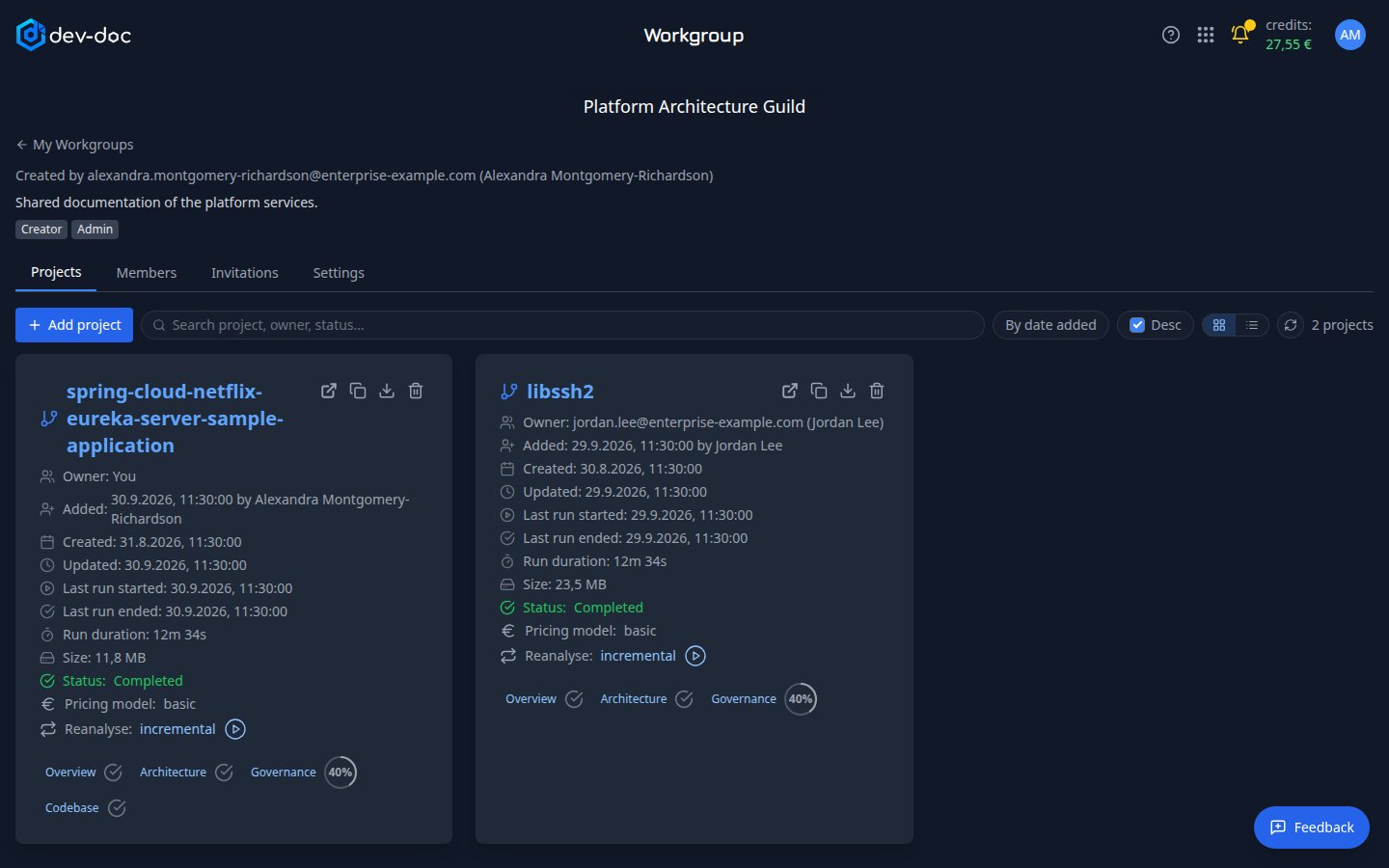
- Tabs — Projects and Members for everyone; Invitations and Settings for admins.
- Add project — put one of your own projects into the workgroup (needs the Add own projects right), or share a project from another workgroup (needs the Share right in both). Shown only when you hold one of these rights here. A project can only be in workgroups created by the same person.
- Projects — every project of the workgroup as a card, laid out like on My Projects: owner, when and by whom it was added, dates, status (live while an analysis runs) and the progress of Overview, Architecture, Governance and Codebase. Click the name or one of these parts to open it; the Projects button on the project page then brings you back to this list. Each card offers only the actions your rights allow: Download documentation (download button), Share to other workgroups (copy-public-link button), Run & stop analyses (see 7). The bin button on a card only takes the project out of this workgroup (see 4); it never deletes the project. Demo projects can be neither deleted nor re-analysed.
- Remove from workgroup (bin button) — takes the project out of this workgroup only; the project itself is not deleted and stays in its owner's projects and in any other workgroup. You are asked first. The owner can always take their own project out; admins and members with Delete projects in this workgroup can remove any project.
- Search — type any words from a project name, its owner or its status; only projects matching every word stay listed (for example jordan completed). The refresh button next to it reloads the list.
- Sort — choose to order the cards by date added, name, owner or status; tick Desc to reverse the order, as on My Projects. Newest additions come first by default.
- Reanalyse and stop — shown only when you hold Run & stop analyses here (or own the project). Click incremental / complete to choose the kind of run, then the play button to start it; while an analysis runs, the red stop button next to the status ends it. Runs are billed to the project owner. The pricing model is shown here for information; to run with a different one, change it on My Projects.
- Card or table view — show the projects as cards (the default) or as a table with the same actions; click a column heading to sort. Your choice is remembered.
Members and rights
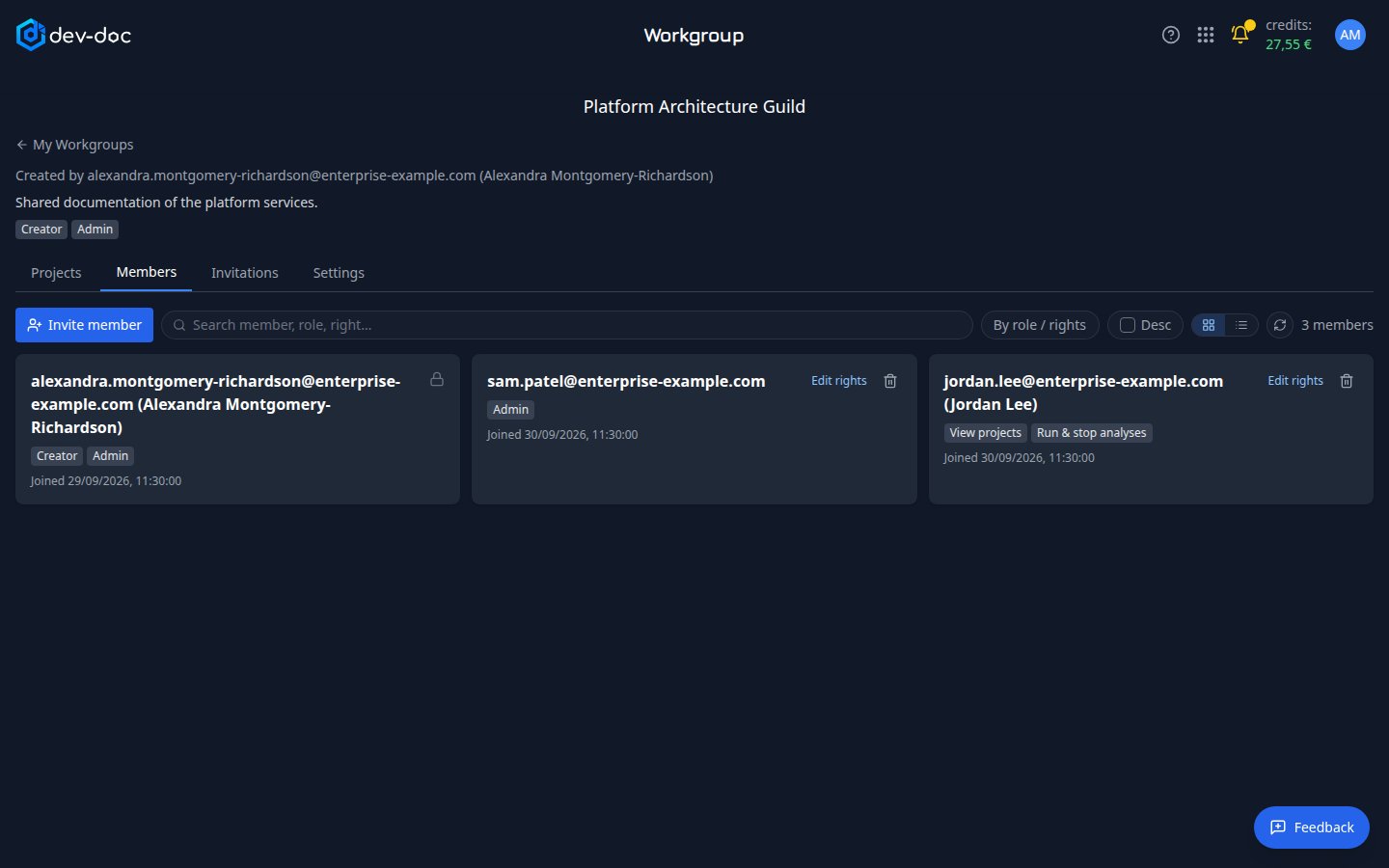
- Invite member — enter an email address, choose admin or member, and tick the rights. We email the invitation. Someone without an account signs up with that address and finds the invitation waiting.
- Creator — always an admin, cannot be removed and cannot leave.
- Edit rights — change what a member may do, or make them an admin.
- Remove member — the person loses access to the workgroup's projects immediately. Members who are not the creator can also leave on their own.
- Search and sort — find a member by any words from their email, name, role or rights (for example admin or run). Choose the order in the sort box (tick Desc to reverse), or, in the table view, click a column heading; click it again to reverse. By default the creator comes first, then admins, then members. The Invitations tab, which admins see, works the same way: search by email, rights, status or who sent the invitation, and sort by any column. The newest invitations come first.
- Card or table view — show the members as cards (the default) or as a table whose column headings sort; the Invitations tab has the same switch. Each list remembers your choice.
What each right allows
Rights apply to every project of the workgroup. Every member can view; admins can do everything.
- View projects — open the projects and follow their progress live.
- Import repositories — import a new project straight into the workgroup (choose the workgroup in the import dialog).
- Add own projects — put your own projects into the workgroup. Taking your own project out again needs no right: an owner can always do that.
- Run & stop analyses — re-analyse, stop, regenerate, and Refresh documentation on a project whose repository is tracked. Runs are billed to the project owner, not to the member who starts them.
- Edit documentation — edit and approve documentation, canvases and decision records, and upload supplied evidence.
- Delete projects — remove projects from this workgroup (the project is kept), and delete a project of the workgroup for good from My Projects.
- Download documentation — download the generated documentation as a ZIP. Source code is never included.
- Share to other workgroups — add a project to another workgroup created by the same person (you need this right in both workgroups), and copy a project's public link with the copy button on its card. The link opens the documentation for anyone, without signing in, and never shows source code; if the project has no live link yet, copying creates one. Only the owner can switch a link off again.
If you are in several workgroups that contain the same project, you have the combination of all your rights there.
You only see what you may do. A button whose right you do not hold is not shown — on the project cards of the workgroup, on My Projects and inside the project:
- Without Edit documentation, sections, canvases and decision records open read-only: no Edit or Approve buttons, no Create New ADR, and no upload of supplied evidence on the Quality tab.
- Without Download documentation, there is no download button on the card or on the Overview tab, and no export on the Quality tab.
- Without Run & stop analyses, there is no Reanalyse or Stop, and no regenerate button on a section.
- Without Share to other workgroups, there is no copy-public-link button on the card and no Share button inside the project. With it, the Share dialog lets you create, renew and copy the public link; only the owner sees Revoke.
- Without Run & stop analyses, My Projects shows the pricing model as plain text and no Reanalyse line.
- Without Delete projects, there is no bin button on another person's project card (on your own project you always have it), and no delete button on My Projects.
Seeing shared projects on My Projects
Once you belong to a workgroup, My Projects shows an Include workgroups option. Tick it to list the projects shared with you next to your own; each one says who it is shared by and which workgroup it comes from. Buttons you have no right for are not shown. A tracked repository shows its status on the card; members with Run & stop analyses can refresh it, while connecting, editing and disconnecting stay with the owner.