Import Project
Every documentation project starts here. Point dev-doc at a repository on GitHub, GitLab or Bitbucket, or upload your project as a zip file. The analysis starts as soon as you confirm.
What this page is forCreate a new project from a repository link or a zip file.
Open it fromThe Import Project card on the home page, the app menu, or + Add Project on My Projects.
Typical next stepFollow the run on My Projects.
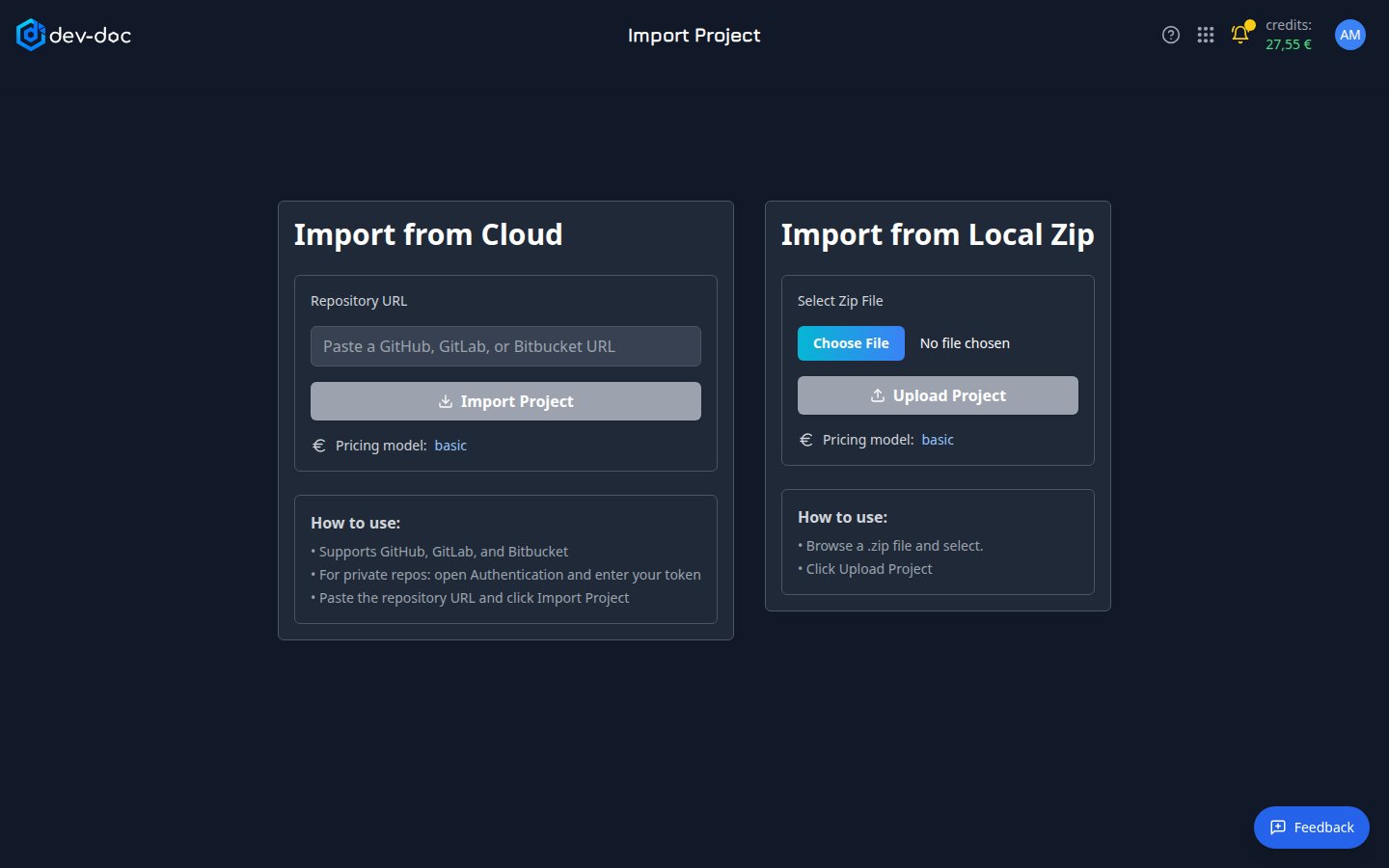
- Repository URL — paste the address of the repository, e.g.
https://github.com/owner/repository. The host is recognised automatically and shown next to the label. - Import Project — starts the import of the repository. It becomes active once the address is valid.
- Pricing model — the quality tier for this project's documentation. Click to see the tiers and their rates, and to choose another. See pricing models.
- How to use — a short reminder of the steps, including private repositories.
- Choose File — select a
.zipfile of your project from your computer. - Upload Project — uploads the zip and starts the import. The zip side has its own pricing model.
Confirm the import
Before anything is uploaded, a confirmation dialog appears:
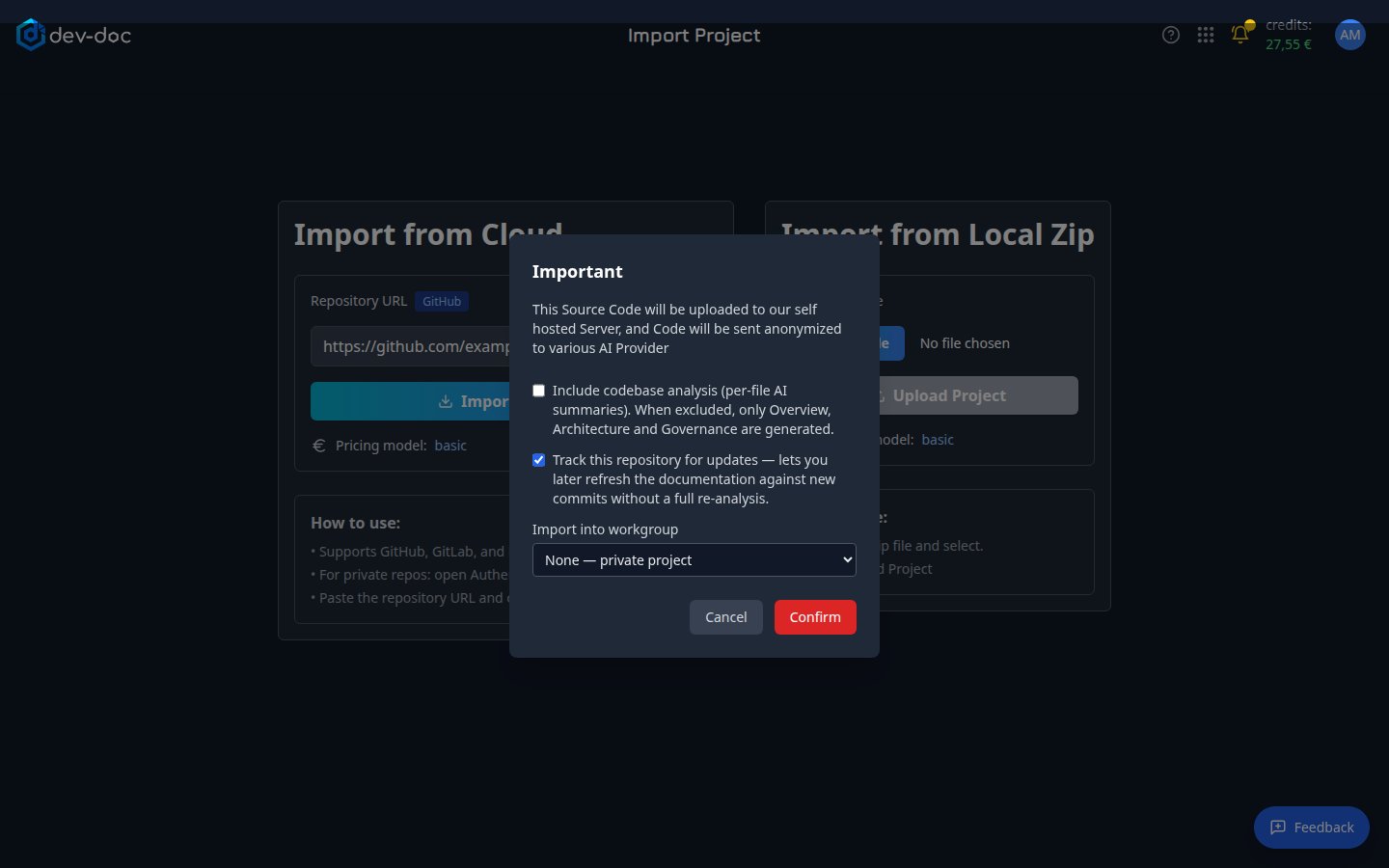
- How your code is processed — a short statement of how your code is handled during the analysis. Read it before you continue.
- Include codebase analysis — adds plain-language explanations for every file, class and function (the Codebase tab). Off by default — without it you still get Overview, Architecture and Governance. It adds time and cost.
- Track this repository for updates — links the project to its repository so you can later Refresh documentation against new commits. Repository imports only. See Keep documentation up to date.
- Confirm — starts the analysis. A message reminds you it runs in the background — you can leave the page.
Private repositories
For a private repository, dev-doc needs read access:
- Create an access tokenIn your repository host's settings: on GitHub a personal access token (Settings → Developer settings → Personal access tokens, with the repo scope), on GitLab a personal access token (User Settings → Access Tokens), on Bitbucket an app password. Read access is enough.
- Paste the repository URLOnce dev-doc recognises the host, a 🔒 Authentication button appears next to Repository URL.
- AuthenticateClick it and enter your token (plus your username for GitHub and Bitbucket). dev-doc checks the token straight away; when it is accepted the lock turns green and shows the host's name.
- ImportClick Import Project and confirm as usual.
Token expired later? For a tracked repository, update it with Edit connection on the project card instead of importing again.
Preparing a zip file
- Zip the project's root folder — the one that contains your source folders and project files.
- Leave out build output, installed dependencies and large media; they slow the import down and are skipped anyway.
- Make sure the zip opens on your own computer before uploading.
Importing into a workgroup
When you may import into one of your workgroups, the confirmation dialog offers Import into workgroup. Choose one to share the new project with that workgroup straight away. You stay the project's owner and the import is billed to you.