My Projects
All projects you have imported, as cards. Each card shows the project's status, live progress for every part of the documentation, and the controls to open, re-analyse, link, download or delete it.
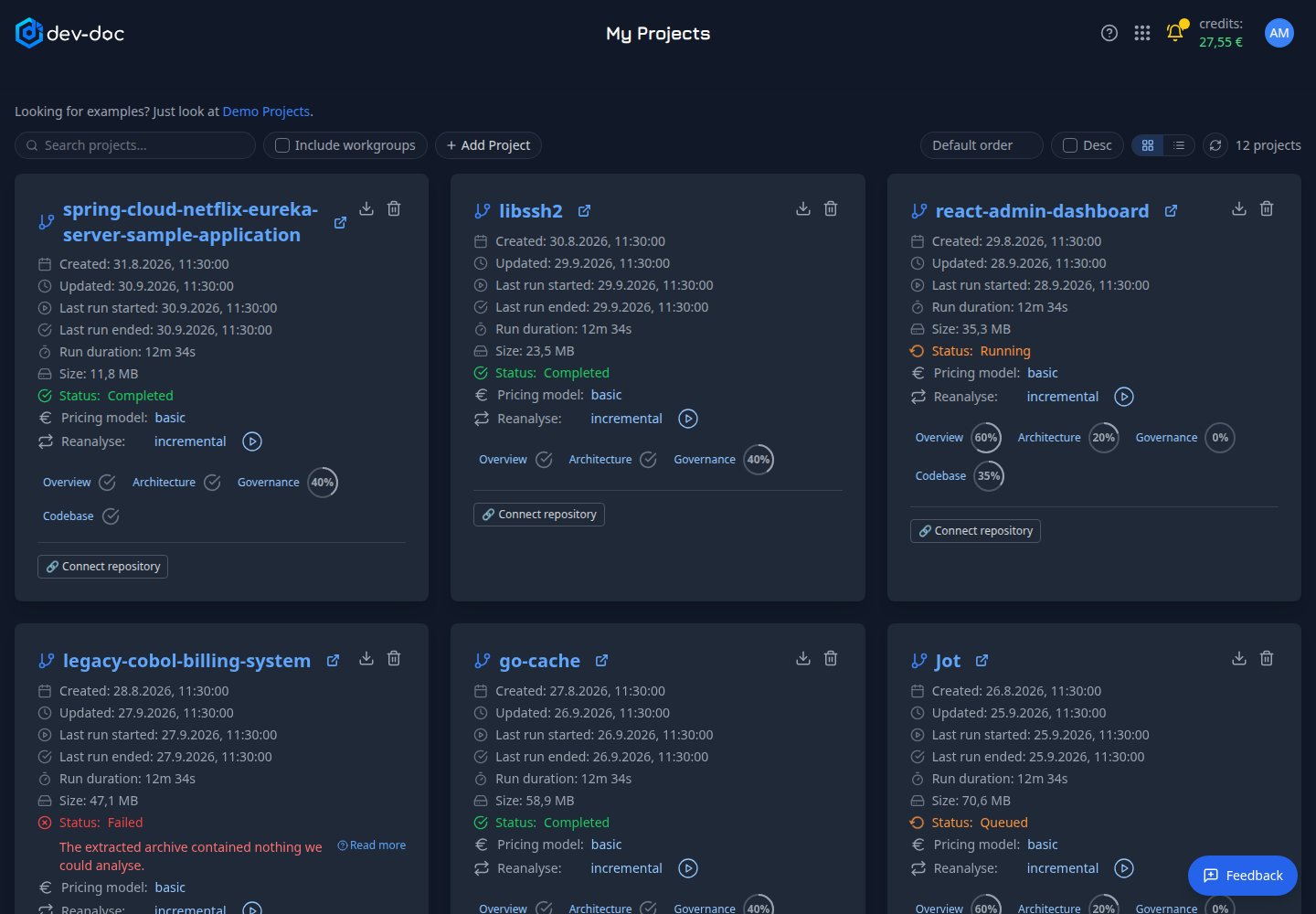
- Search projects — filter the cards by name as you type.
- + Add Project — go to Import Project.
- Sort — order the cards by name, status, creation date, last update, size or last run; tick Desc to reverse the order.
- Refresh — reload the list. Status and progress also update live without refreshing.
- Project name — opens the project. The small arrow next to it opens it in a new tab.
- Status — where the project is: waiting, processing, completed or failed. The dates above it show when the project was created and when the last run started and ended, plus the run duration and size.
- Pricing model — the quality tier used for this project's runs. Click to change it before the next run.
- Reanalyse — click the mode to switch between incremental and complete, then the play button to start. While a run is active, a stop control appears instead. See Keep documentation up to date.
- Progress per tab — one button per part of the documentation — Overview, Architecture, Governance and (if included) Codebase. A ring shows the percentage while it is being written, a tick when it is done. Click to jump straight to that tab.
- Connect repository — link the project to its repository for one-click updates. When linked, this area offers Refresh documentation, check for updates, edit and disconnect.
- Delete — removes the project and its documentation after a confirmation. This cannot be undone.
- Failure reason — shown on a failed project: a plain explanation of what went wrong. Read more gives the full advice. See Troubleshooting.
- Demo Projects — a shortcut to finished examples.
- Download — save the project's documentation as a ZIP: Markdown files, an arc42 document (also as AsciiDoc for docToolchain), and an SBOM with a supplier fact sheet for Cyber Resilience Act / NIS2 reviews. Source code is never included. See Download your documentation.
- Card or table view — show the projects as cards (the default) or as a table with one row per project: status, documentation progress, size, last update and last run, with the actions you are allowed. Click a column heading to sort. Pricing model, run type and failure reasons stay on the cards. Your choice is remembered.
Stop a running project
While a project is processing, its card shows a stop control. Click it and confirm; the status changes to Stopping and then Revoked. Work already finished is kept — an incremental re-analysis continues from there.
Demo and read-only projects
A project that has been published as a demo shows a lock badge and cannot be re-analysed, stopped or deleted while it is published. You can still download its documentation.
Projects shared with you
If you belong to a workgroup, an Include workgroups option appears next to the search box. Tick it to also list the projects of your workgroups. A shared project shows who shared it and the workgroup it comes from, and only offers the buttons your rights allow. Runs of a shared project are billed to its owner.