Purchase Credits
Choose how many credits you want and buy them with a secure online checkout. Credits are added to your balance as soon as the payment is confirmed, and they never expire.
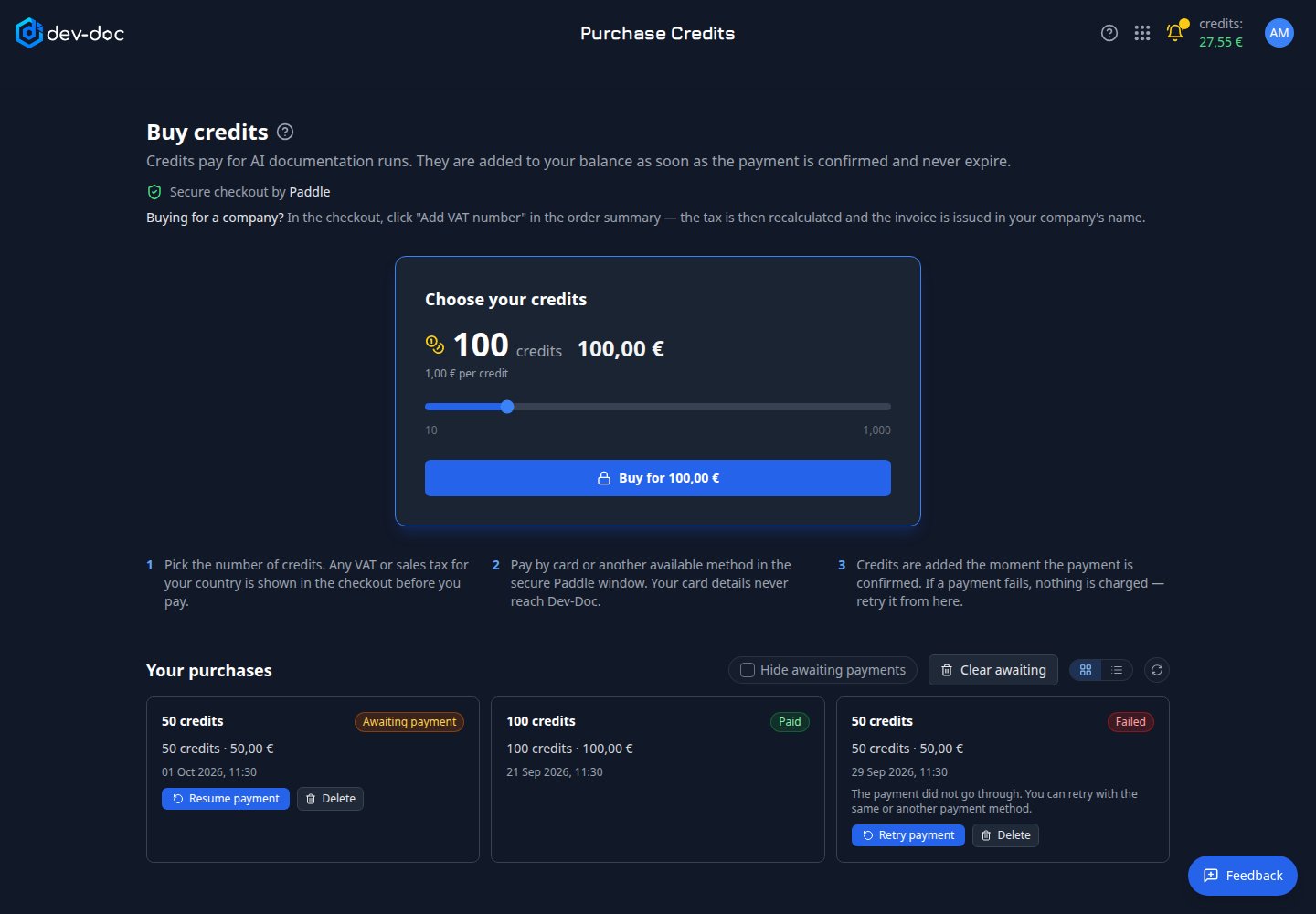
- Choose your credits — move the slider to pick the number of credits: 10, 50, 100, 150, 200, then in steps of 100 up to 1,000. The box shows the credits, the price and the price per credit for your choice.
- Buy — first shows a short note on who sells the credits and who issues the invoice. Continue with payment via paddle.com then opens the secure checkout window for the credits you chose: first Your details, then Payment.
- Secure checkout — payments are handled by our payment partner. Your card details never reach dev-doc.
- How it works — pick the number of credits; pay in the checkout (taxes for your country are shown before you pay; companies click "Add VAT number" in the checkout's order summary, so the invoice is issued in the company's name — see buying for a company); credits are added once the payment is confirmed.
- Your purchases — every order with date, credits, amount and status. An order you started but did not pay shows Awaiting payment, with Resume payment to finish it.
- Retry payment — shown on an order that did not go through. Retry with the same or another payment method — nothing was charged for the failed attempt.
- Refresh — reload the order list.
- Delete — on every entry that is awaiting payment or failed. Cancels that payment attempt and removes it from the list. Nothing was charged for it.
- Clear awaiting — deletes every entry awaiting payment at once, after you confirm.
- Hide awaiting payments — tick it to show only finished and failed orders. It only hides entries, it deletes nothing. Unticked by default.
- Card or table view — show your purchases as cards (the default) or as a table. Your choice is remembered.
Before the checkout opens
Every Buy for … button first shows this note, so you know who you are buying from before you pay.
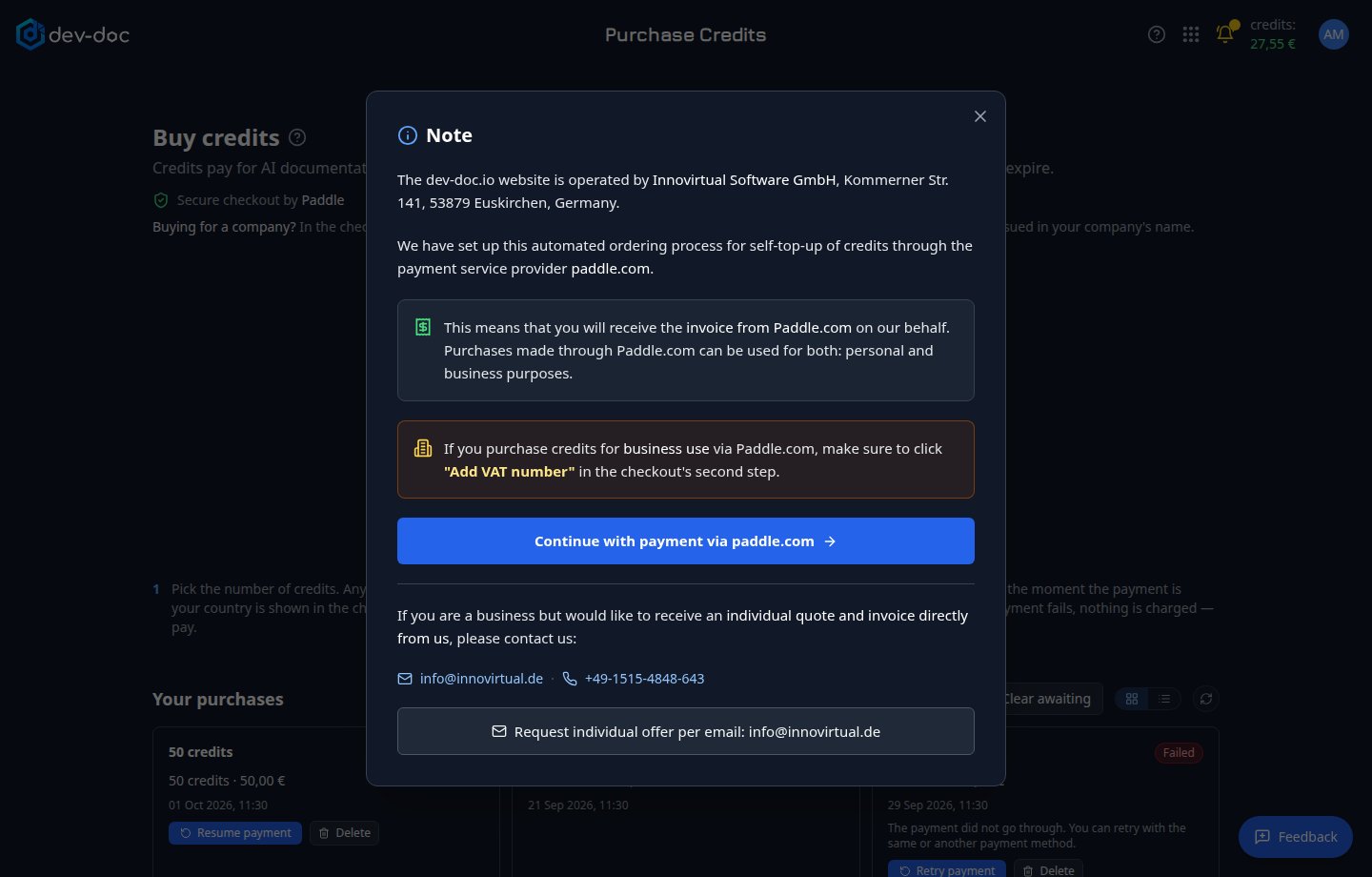
- Who runs dev-doc.io — the website is operated by Innovirtual Software GmbH, Kommerner Str. 141, 53879 Euskirchen, Germany.
- Who sends the invoice — you receive the invoice from Paddle.com on our behalf. A purchase can be for personal or business use.
- Buying for a company — click Add VAT number in the checkout's second step, so the invoice is issued in your company's name. See buying for a company.
- Continue with payment via paddle.com — closes the note and opens the secure checkout for the credits you picked.
- Individual quote — a business that prefers a quote and invoice directly from us can write to info@innovirtual.de or call +49-1515-4848-643. Request individual offer per email opens a prepared email.
- Close — closes the note without opening the checkout (Esc or a click outside it does the same). Nothing is ordered.
After paying
The page confirms the payment and your balance updates in the top bar. If confirmation takes longer, the page tells you the credits will arrive by themselves — you can safely leave it.
Unfinished payments
If you close the checkout before paying, the page tells you so above the credit slider.
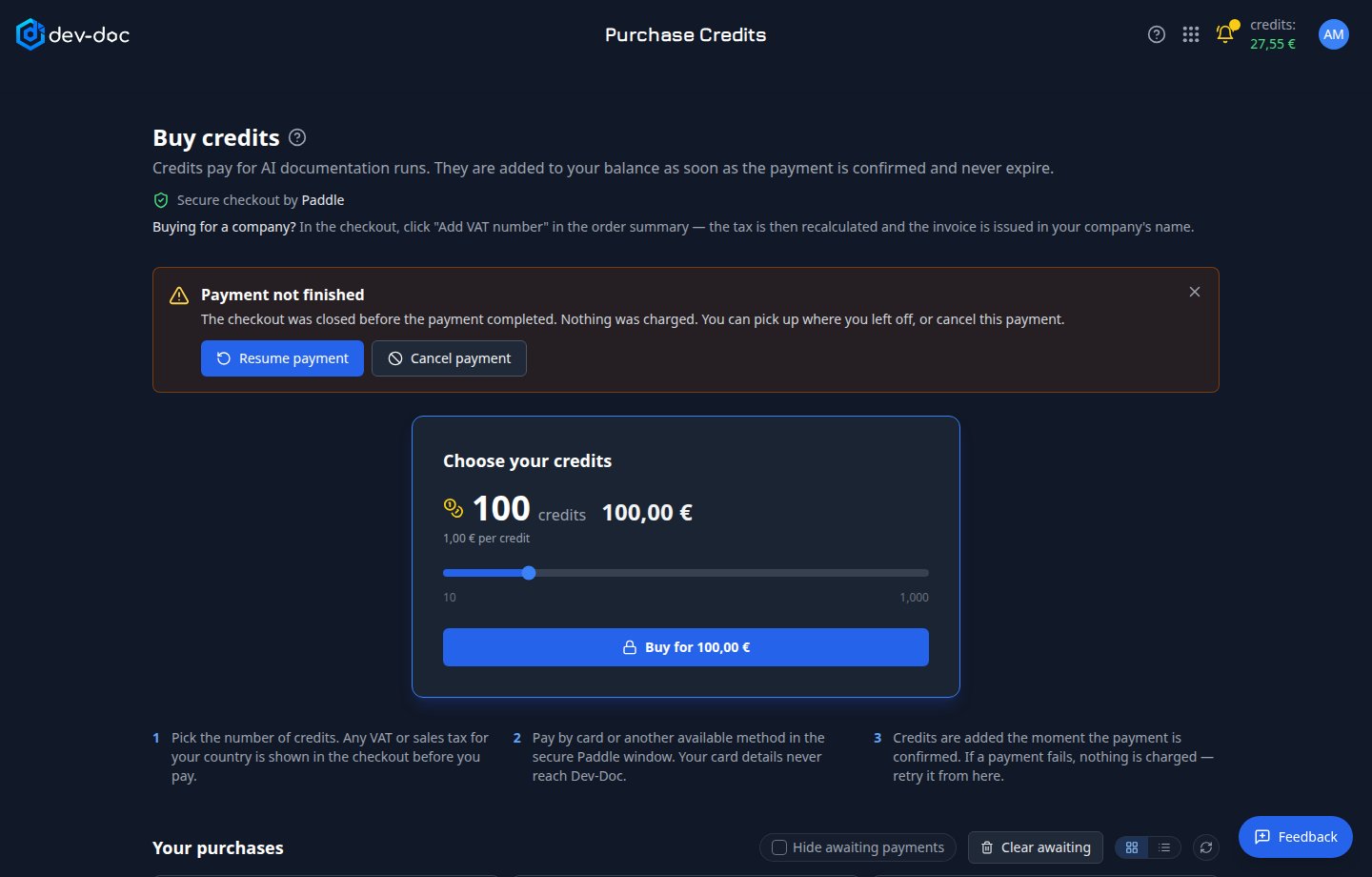
- Payment not finished — the checkout was closed before the payment completed. Nothing was charged.
- Resume payment — reopens the checkout where you left off.
- Cancel payment — cancels this payment attempt. It disappears from Your purchases, and the message closes.
Entries you never paid stay in Your purchases as Awaiting payment until you finish, delete or clear them (numbers 8–10 above). A Failed entry can be retried or deleted the same way; Clear awaiting leaves failed entries alone. A payment that went through in the meantime is never deleted — its credits are added instead. A cancelled attempt cannot be resumed; to buy again, choose your credits and buy again.